
Orbizy · Guides
IPTV player for Android TV and Google TV
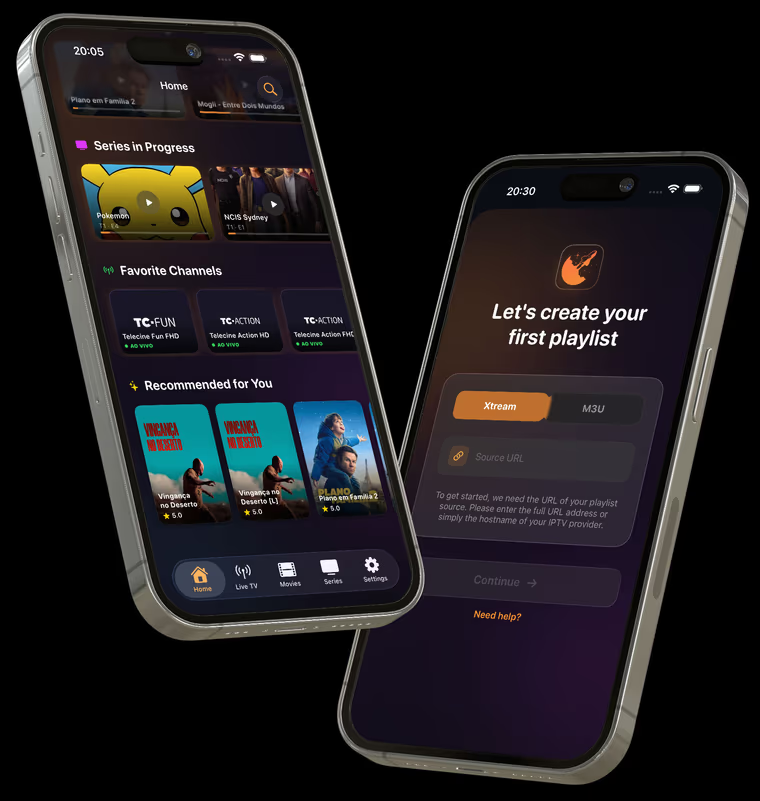
Orbizy supports navigation on Android TV and Google TV. Install the compatible app, sign in, and add an M3U or Xtream Codes source. A Smart TV running a different operating system does not automatically support Android TV applications.
How to set up
Check your device’s store
Open the Orbizy Google Play listing on the device. The store shows whether the app is available for your model.
Authorize the device
Sign in using the app’s instructions. If your TV displays a linking code, follow the address shown there.
Load and test your playlist
Sync your account library or add a source. Test a few channels; if playback stalls, check your network and the provider’s stream.
Before you start
- Enter your provider’s details exactly and avoid extra spaces when using the remote.
- Update the system and app through the store. Availability depends on compatibility and region.
Start with your own playlist
Download Orbizy from your device’s store. The download is free; a subscription is required after the trial. Channels are not included.